We log search terms to improve our documentation. For more information, read our Privacy Policy.
Managing Your Domains
Last modified: 2026 October 15
Overview
You can use the Websites hub to manage everything domain-related on your account. From here you can add new domains, create subdomains, edit DNS records, set up URL redirects, remove a domain, and manage each site’s settings.
Viewing your websites
The main page of the Websites hub lists every domain on your account and summarizes your plan usage.
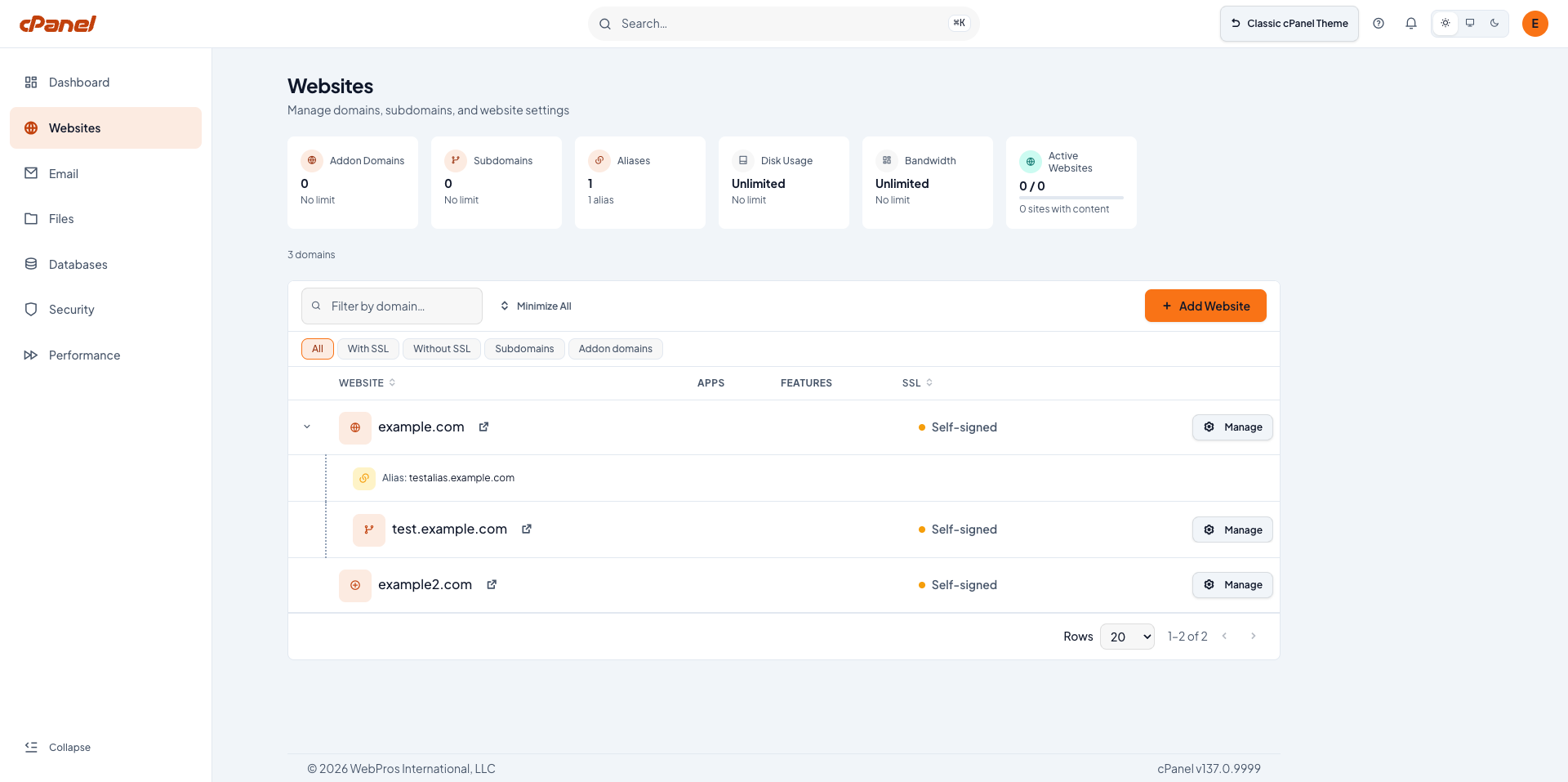
The websites table lists every domain on your account with the following information:
| Column | Description |
|---|---|
| Website | The domain name. Your primary domain displays a Main Domain tag. Addon domains, subdomains, and alias (parked) domains also appear here. |
| Apps | The application you use to manage the website. For example, Sitejet, WordPress®, Nova, or Nova for WordPress. |
| Features | The features available for the domain. |
| SSL | The domain’s current SSL status. |
| PHP | The domain’s PHP version. |
Each row includes tools to open the site in a new browser tab, manage the domain’s SSL certificate, change its PHP version, and open the per-domain detail view. To open the detail view for a domain, click Manage. For more information, read the Managing a Domain section below.
Adding a domain or subdomain
To add a new domain or create a subdomain, click Add Website. A Setup wizard opens and guides you through the following steps:
-
Choose the domain that visitors will use to reach the site, and then click Continue:
- Use [your primary domain] — Set up the site on your account’s main domain.
- Add another domain — Host an existing or new domain on this account. This option is available only if your plan allows additional domains.
- Create a subdomain — Use a subdomain of your primary domain, such as
blog.example.com.
-
If you selected Add another domain, the Enter your domain step asks for the domain name.
Meridian checks the name against the public domain registry. If it cannot find registration for that name, it displays a example.com is not a registered domain warning. This is a reminder to check the spelling or register the domain first. You can continue anyway, which is useful for a domain that you are about to register or one that you use internally.
-
On the How do you want to build? step, choose how to create the site and click Continue:
- Sitejet — The drag-and-drop website builder.
- WordPress — Use the world’s most popular content management system.
- Nova — Describe the site or web app you want and let AI build it. Nova creates custom layouts and functionality, so it suits sites and apps that need to do something specific.
- Nova for WordPress — Describe the WordPress site you want and let AI build it. This suits content sites and blogs, or any site you want to extend with WordPress themes and plugins.
- Custom Code — Upload your own files or use any framework.
Note:These options only appear if your hosting provider enables them.
-
Confirm your selection and click Launch My Website.
After you publish a site that you built with Nova for WordPress, you cannot reopen it in Nova for WordPress. To update the site, edit it in the WordPress block editor. We plan to include AI editing of WordPress sites in a future release.
Managing a domain
To manage an individual domain, click Manage next to the domain in the websites table. The domain’s detail view opens.
Domain management tabs
The detail view organizes the domain’s tools into the following tabs:
| Tab Name | Features |
|---|---|
| Overview | Use this tab to view the following information:
|
| SSL | Manage the domain’s SSL certificate. |
| Manage email accounts for the domain. | |
| DNS | Add, edit, or remove the domain’s DNS records (A, AAAA, CNAME, MX, TXT, NS, and others) in the Zone Records table. Use it to point a domain at a different server’s IP address, verify domain ownership for an external service with a TXT record, or set up email delivery with MX records for a different provider. DNS changes can take up to 24 hours to propagate worldwide. |
| Files | Manage the files for the site. |
| Backups | Manage the domain’s backups. |
| App Logs | View the log files for a web app. |
| App Env | Add or change environment variables for a web app. |
| App configuration | Review or change your app’s settings and database. |
| Aliases | Add alias domains that point to this website. For more information, read the Adding an Alias Domain section below. |
| Settings | Configure additional settings for the domain, including redirects. Set up a 301 (permanent) or 302 (temporary) redirect to forward one address to another, which is useful when you have moved content but want old links to keep working. Remove the domain from your account. |
Website Builder
The Website Builder section lists the apps and tools you can use to build a website for your domain. For example, Sitejet, WordPress, Nova, or Nova for WordPress.
Adding an alias domain
An alias points another name at an existing website on your account. The alias shares the parent domain’s website and content, so visitors who go to the alias see the same site as visitors who go to the parent domain. Aliases are useful when you own more than one domain name (for example, a .com and a .net domain) and want them all to display the same website.
To add an alias, open the parent domain’s detail view and select the Aliases tab. For more information about opening the detail view, read the Managing a Domain section above.
Removing a domain
Removing a domain deletes its DNS records, server configuration, redirects, and associated FTP accounts. It does not delete the files in the domain’s website folder.
To remove a domain, perform the following steps:
- Open the domain’s detail view. For more information, read the Managing a Domain section above.
- Select the Settings tab.
- Scroll down to the Danger Zone section and click Remove Domain.
- Optionally, if your domain contains a Node.js app, select the Also delete the database checkbox to delete the app’s database. For more information, read our Deleting a Node.js app documentation.
- Enter the domain name.
- Click Remove Permanently.
- You cannot undo removing a domain.
- If a web app runs on the domain, removing the domain also deletes the app.