We log search terms to improve our documentation. For more information, read our Privacy Policy.
File Transfer Accounts
Last modified: 2026 July 24
Overview
File Transfer Accounts are the File Transfer Protocol (FTP) and Secure File Transfer Protocol (SFTP) logins that move files in and out of your hosting account. Each account has its own username, password, and home directory, so you can give a developer or designer access to only the part of your account that they need.
You can find the File Transfer Accounts tab in Meridian’s Files hub. A File Transfer summary card that shows how many accounts exist and links to Manage File Transfer Accounts.
The File Transfer Accounts tab only appears if your hosting provider enabled the feature.
The File Transfer Accounts table
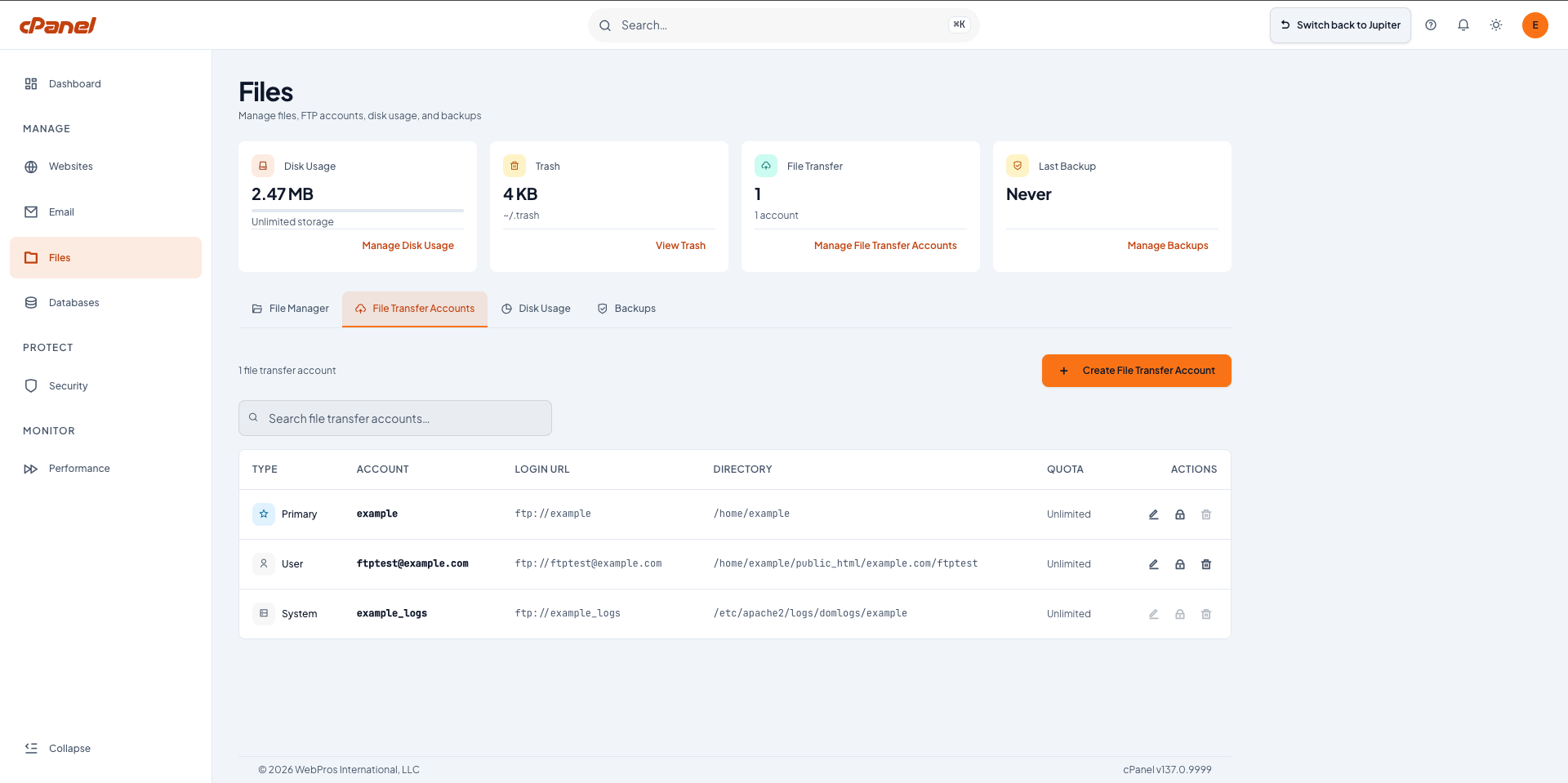
The File Transfer Accounts tab lists your accounts in a table with the following information:
| Column Name | Description |
|---|---|
| Type | The kind of account:
|
| Account | The account’s username. |
| Login URL | The address to use to connect to the account. |
| Directory | The account’s home directory. This is the directory the user will see when they connect to the server. |
| Quota | The account’s disk space limit. |
| Actions | The actions that you can perform on the account. |
Create a File Transfer account
To create a new FTP or SFTP account, perform the following steps:
- Click + Create File Transfer Account.
- Enter the desired username in the Username text box. The full login becomes
[email protected]. - Enter a password in the Password text box, or click Generate to create a strong password. The strength meter rates the password as you type.
- Enter the account’s home directory in the Directory text box. This is the directory the user will see when they connect to the server.
- Enter a disk space limit, in MB, in the Quota text box, or keep the Unlimited setting.
- Click Create Account. The new account appears in the File Transfer Accounts table.
Manage File Transfer accounts
Use the Actions column in the File Transfer Accounts table to manage an existing account. You can only manage the User type accounts.
Edit an account
To update an account’s password or quota, perform the following steps:
- Click the edit icon () for the desired account.
- Update the New Password or Quota value.
- Save your changes.
Delete an account
To delete an account, click the delete icon () for the account and then click Delete Account.
Deleting an account removes only the login. It does not delete the files in that account’s home directory.
Connect to a File Transfer account
To connect to an account, find its connection details and install an FTP client on your computer. You can locate the account in the File Transfer Accounts table and note the following:
- Login URL — The address to use to connect (for example,
ftp://[email protected]). This includes the protocol and the account’s full username. - Account — The account’s full username (for example,
[email protected]), which you use to log in.
Enter these details, along with the account’s password, into your FTP client to connect.
Secure File Transfer Protocol (SFTP) transfers files over an encrypted connection. SFTP is available if your hosting plan supports it. For more information, read our How To Configure Your SFTP Client documentation.