We log search terms to improve our documentation. For more information, read our Privacy Policy.
Navigating Meridian
Last modified: 2026 October 13
Overview
When you log in to Meridian, its header, sidebar, Dashboard, and hubs work together to help you quickly find and manage your account’s features.
For more information on what Meridian is and who it’s designed for, read our Welcome to Meridian documentation.
Dashboard
The Dashboard is the default landing page after you log in.
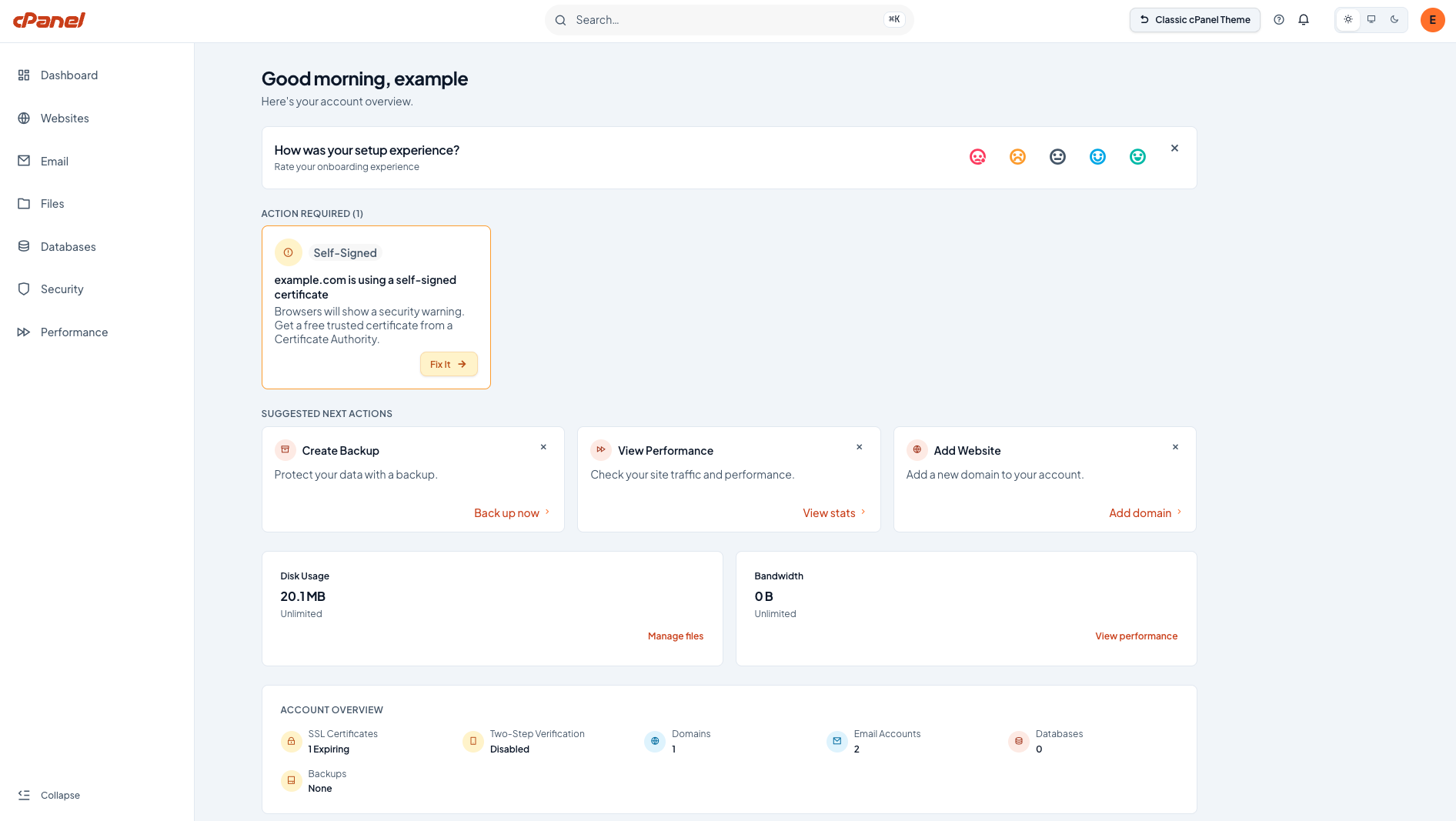
The Dashboard includes the following sections:
| Section | Description |
|---|---|
| How was your setup experience? | Appears for new accounts only. Rate your setup experience on an emoji scale from unhappy to happy. Select X to dismiss it. |
| Action Required | Shows items that need your attention, such as an SSL certificate issue. Each item includes a direct action, such as Fix It. |
| Suggested Next Actions | Recommends tasks such as creating a backup, reviewing performance, or adding a website. Select the X on a suggestion to dismiss it. |
| Resource Usage | Shows your current disk usage and bandwidth against your account’s limits, with links to the relevant hubs. |
| Account Overview | Summarizes the status of your SSL certificates, two-step verification, domains, email accounts, databases, and backups. |
Header
No matter where you are in Meridian, its persistent header gives you quick access to the following elements:
| Element | Description |
|---|---|
| cPanel logo | Click the logo to return to the Dashboard from anywhere in Meridian. |
| Search… | Opens the Command Palette, which lets you jump to any feature, interface, or setting by typing its name. |
| Classic cPanel Theme | Returns you to the Jupiter theme. This element only appears if you can switch back to Jupiter. |
| Help () icon | Links to documentation and support resources. |
| Notifications () icon | Displays alerts about your account. |
Display preferences ( ) icons ) icons |
Adjusts theme and display settings. |
User avatar ( ) ) |
Opens a menu with your username, a link to your profile settings, and Log Out. |
Command Palette
To open the Command Palette, click Search… in the header, or press Cmd+K (macOS) or Ctrl+K (Windows and Linux) from anywhere in Meridian. Type the name of a feature, interface, or setting to see matching results, use the arrow keys to move between them, and press Enter to open your selection. Select Browse all commands to see every available command.
Sidebar and hubs
The collapsible sidebar on the left is Meridian’s primary navigation. Select Collapse at the bottom of the sidebar to hide the labels and give the content area more space. Select it again to expand the sidebar.
Selecting a hub opens its dedicated interface.
| Hub | Description |
|---|---|
| Websites | Lists your domains in a sortable table with columns for information about your website, its features, SSL certificates, and the PHP version. Select + Add Website to create a domain, or Manage on an existing domain to manage its settings.
Note:
If your account has the Web Apps feature, the Websites hub appears as Websites & Apps and lets you deploy and manage Node.js™ apps. For more information, read our Deploy a Website with Node.js documentation. |
| Shows your total account count, storage usage, forwarders, and autoresponders in summary cards. Filter the account table by status, such as Suspended or Near quota, and select + New email account to create an account. | |
| Files | Shows summary cards for disk usage, trash, File Transfer accounts, and your last backup. Use the tabs to reach the embedded File Manager, File Transfer Accounts, Disk Usage, and Backups features. |
| Databases | Lists your databases with a search filter. Select + Create database to add one. |
| Security | Shows summary cards for your security score, SSL status, two-step verification status, password security, and HTTPS redirect configuration. An Action Required section displays issues with direct fixes. Use the SSL Certificates, Protection, and Advanced tabs for more details. |
| Performance | Shows summary cards for bandwidth, visitors, and errors. Use the By Websites tab to review per-domain stats, and the Recent Errors tab to review server-side error logs. |