We log search terms to improve our documentation. For more information, read our Privacy Policy.
Managing SSL Certificates
Last modified: 2026 July 24
Overview
An SSL/TLS certificate encrypts the traffic between your visitors and your site and confirms that the site is really yours. Without a valid, trusted certificate, browsers warn visitors that the connection is not secure.
The Security hub SSL Certificates tab lets you review your account’s SSL status, issue free certificates with AutoSSL, install a certificate you obtained elsewhere, and force domains to use HTTPS.
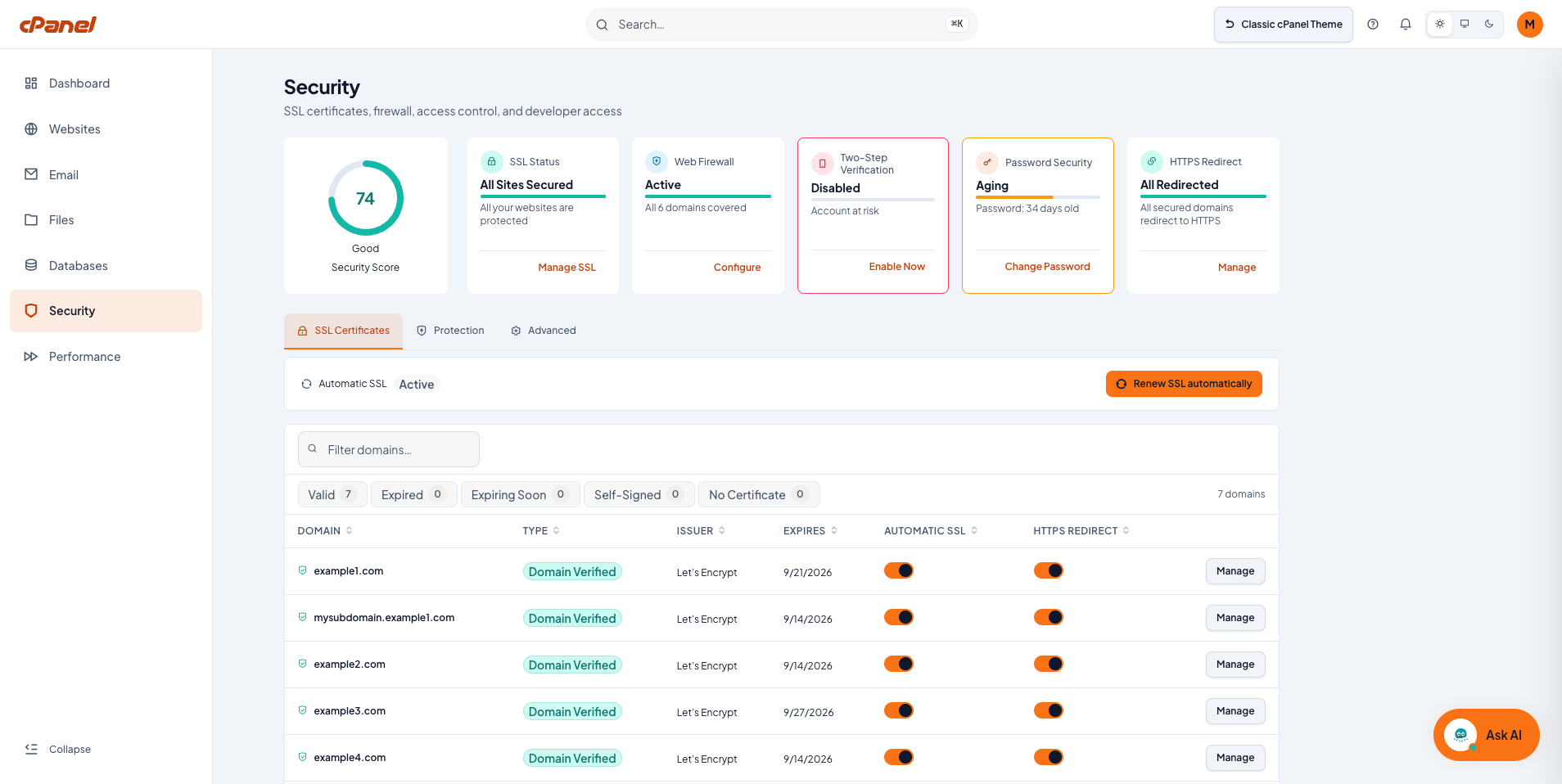
Understanding your SSL security score
The top of the Security hub displays a Security Score gauge and a row of status cards. The SSL Status card summarizes certificate coverage across all of your domains, so you can see immediately whether a certificate protects each domain.
Your security score reflects the certificate status of your domains. Domains without a valid, trusted certificate lower the score. Issuing trusted certificates for those domains raises it.
When a domain needs attention, the Action Required panel highlights the issue (for example, a domain that uses a self-signed certificate). Click the Fix It button to open appropriate tool to resolve the issue. Use the certificate counts on the SSL Certificates tab to see exactly how many domains fall into each status.
Getting a free SSL certificate with AutoSSL
AutoSSL automatically requests and renews free, trusted certificates for the domains on your account. AutoSSL typically uses Let’s Encrypt, so you do not have to buy or manually renew a certificate for most domains.
To issue or renew free certificates, perform the following steps:
- On the SSL Certificates tab, click Run AutoSSL automatically.
- AutoSSL checks every eligible domain on your account and requests or renews a certificate for each one.
For AutoSSL to succeed, the certificate authority must be able to contact the domain via HTTP and its DNS must point to your server. This lets the certificate authority confirm that you control the domain.
If AutoSSL fails for a domain
If AutoSSL cannot issue a certificate for a domain, check the AutoSSL error message. To view the error message, locate the domain in the Domains table and click Manage. You can view the error in the Automatic SSL section of the Certificate Details tab.
The most common causes are:
- The certificate authority cannot reach the domain over HTTP.
- The domain’s DNS does not point to your server.
Correct the underlying issue and then run AutoSSL again.
Installing a paid or third-party SSL certificate
To install a certificate you obtained from a certificate authority (CA), the interface provides multiple methods. You can access the certificate installation wizard via the Action Required panel menu or via the domain’s Manage interface.
If the domain does not have an active certificate, perform the following steps:
- Locate the domain in the table and click Manage.
- Click Set up SSL. The Set Up SSL/TLS Certificate interface will appear.
- Click Install a Certificate from a Provider.
- Paste the certificate details in the Certificate (PEM) and CA Bundle (optional, PEM) text boxes and click Continue.
- Confirm the certificate information and click Install.
If the domain already has an SSL certificate, you must uninstall it before you can use your own. To uninstall the SSL certificate, perform the following steps:
- Locate the domain in the table and click Manage.
- Click the Advanced tab.
- In the Danger Zone section, click Uninstall.
After the uninstallation is complete, you can install your certificate.
Enabling HTTPS Redirect for a domain
An HTTPS redirect forces all traffic to a domain to use https:// instead of http://. This ensures that visitors always use the encrypted, secure version of your site. Enable the HTTPS redirect only after you install a valid certificate on the domain.
To enable the redirect, locate the domain in the per-domain certificate table and toggle the HTTPS Redirect option.
Do not enable the HTTPS redirect for a domain that does not have a valid, trusted certificate. If you force HTTPS without a working certificate, visitors receive a browser security warning instead of your site.